
The Australian Legal Freelancer's Document Dilemma
As an Australian legal freelancer, you're juggling ATO tax documents, ASIC forms, statutory declarations, and rental bond paperwork—all while managing client confidentiality under Australian Privacy Principles. The document formats vary: some clients send RTF files from older systems, others email Excel spreadsheets, and government portals often require specific PDF submissions. You need tools that work with what you have, right now, without installing software or compromising document integrity.
Here are 10 practical PDF tips using free browser-based tools that actually work with your Australian document workflow.
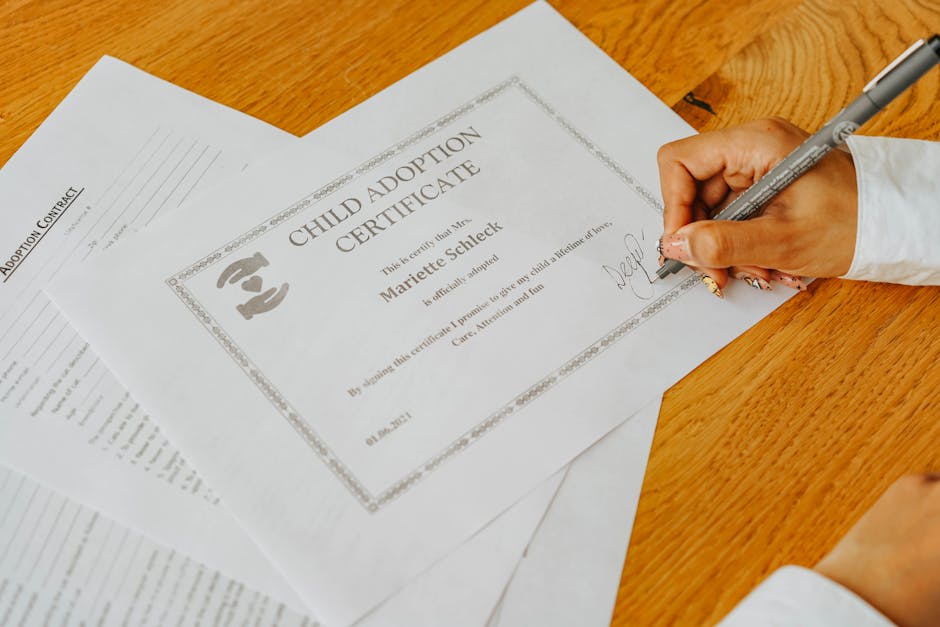
Tip 1: Convert Legacy RTF Documents to Modern PDFs
You've just received statutory declaration drafts in RTF format from a client using older software. The Australian government's digital reporting requirements mean you need PDFs for submission. Instead of asking clients to reformat everything, use the RTF to PDF converter.
How it works: Upload the .rtf file, click convert, and download the PDF. The tool preserves all text formatting, creating a universally viewable document that's ready for ATO digital reporting or ASIC submissions. This is perfect for converting older RTF templates to modern PDF format while maintaining the document's original structure.
Tip 2: Prepare Documents for Cost-Effective Printing
When printing multiple copies of rental bond agreements or court documents for clients, color printing costs add up quickly. Use the PDF to Grayscale tool to convert color documents to black and white before printing.
Simple process: Upload your PDF, the tool removes all color data, and you download the grayscale version. This reduces file size and saves on ink costs—especially useful when printing lengthy statutory declarations or multiple ATO document copies for client records.
Tip 3: Convert Financial Spreadsheets for Client Review
Your client's financial data for ATO submissions arrives as an Excel spreadsheet. You need to share it in a non-editable format for review while preserving the table layout. The Excel to PDF converter handles this perfectly.
Step by step: Upload the .xls or .xlsx file, and download a PDF that maintains all spreadsheet formatting. This creates professional-looking financial reports that clients can review without accidentally modifying the numbers—crucial for accurate ATO documentation.

Tip 4: View Word Documents Without Office Software
You're at a client's office or using a public computer, and need to review a Word document containing draft rental agreements. Without Microsoft Office installed, you can still access the content using the Word Viewer.
How it helps: Upload .doc or .docx files and view them directly in your browser. No software installation needed, which means you can quickly preview attachments on any device while maintaining client confidentiality—no documents need to be saved locally on shared computers.
Tip 5: Secure Sensitive Client Documents
When emailing statutory declarations or rental bond documents containing personal information, you need to protect client data. Use PDF Password Protection to add security to sensitive files.
Practical application: Upload the PDF, set a password, and download the protected version. This adds a layer of security when sharing documents containing personal identifiers, helping you comply with Australian Privacy Principles during digital transmission.
Tip 6: Combine Multiple Documents for Submission
ASIC forms often require supporting documents to be submitted as a single PDF. Instead of sending multiple files, use PDF Merge to combine them into one organized document.
Workflow: Upload all separate PDFs—statutory declarations, identification documents, supporting letters—and merge them into a single file. This creates a complete submission package that's easier for government agencies to process and for you to track.
Tip 7: Archive Documents for Long-Term Preservation
ATO requires businesses to keep records for five years (or longer in some cases). For proper archiving of important documents, convert them to PDF/A format using PDF to PDF/A.
Why this matters: PDF/A is the ISO-standard archival format designed for long-term preservation. Converting your important legal documents to this format ensures they remain accessible and unchanged for the required retention periods under Australian law.
Frequently Asked Questions
Can I convert multiple RTF files to PDF at once?
No, the RTF to PDF tool processes one .rtf file at a time. For multiple documents, convert each individually, then use the PDF Merge tool to combine the resulting PDFs into a single document.
Will converting Excel to PDF preserve formulas and calculations?
The Excel to PDF converter preserves the table layout and formatting as it appears in your spreadsheet, but the PDF will show the calculated values, not the formulas themselves. The PDF becomes a snapshot of your data at conversion time.
Is there a way to edit PDF forms for ATO submissions?
Yes, you can fill in interactive form fields using PDF Form Fill. Upload your ATO PDF form, click on the form fields to enter information, and download the completed form. For non-interactive forms, you would need to add text separately before converting to PDF.
How do I reduce PDF file size for emailing large documents?
Use PDF Compressor to reduce file size while maintaining visual quality, or PDF Compress Pro for advanced compression with quality presets. Converting color documents to grayscale with PDF to Grayscale also reduces file size.



