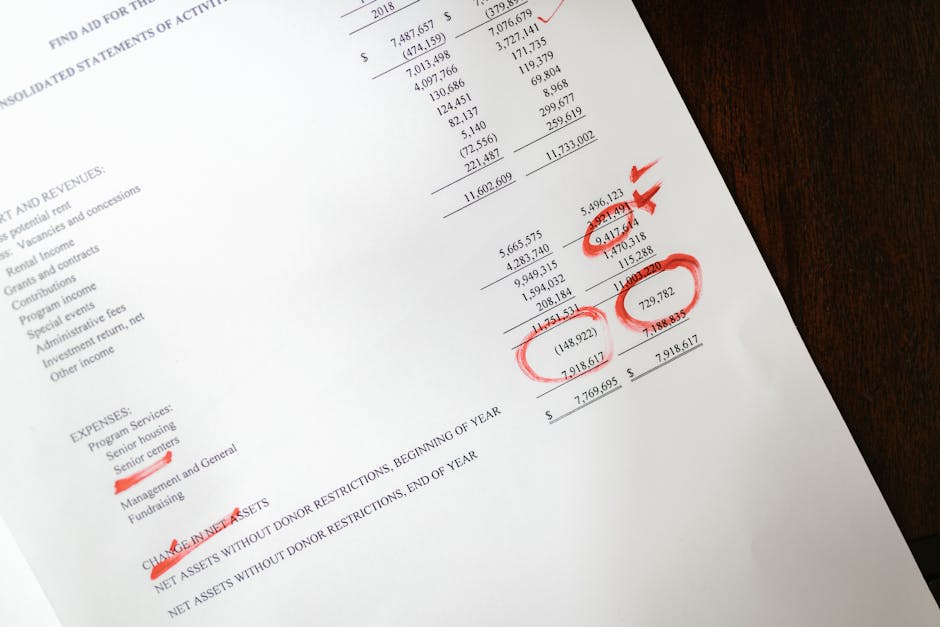
The PDF Form Problem Every Accountant Faces
You're reviewing a client's tax documents, and you've got 15 different PDFs from various sources: W-2s from employers, 1099s from contractors, expense reports from their bookkeeping software, and scanned receipts. They're all named something like "document.pdf" or "scan001.pdf." When you need to find that specific medical expense receipt from six months ago, you're scrolling through dozens of files, trying to remember which one contains what.
This is the daily reality for freelance accountants. Client documents arrive as unstructured PDFs with generic names, making organization and retrieval time-consuming. Without proper labeling, you waste precious billable hours searching for documents instead of analyzing them.

Why PDF Metadata Matters for Client Files
PDF metadata is the hidden information embedded in every PDF file that describes what the document contains. Think of it as digital file labels that stay with the document no matter where it goes. For accountants, properly set metadata means:
- Quick identification of client documents in your file system
- Easy searching across all your PDF files
- Professional presentation when sharing documents with clients
- Better organization for tax season when you're handling multiple clients
Our PDF Metadata tool lets you view and edit this information directly in your browser. You upload a PDF, see its current metadata (title, author, subject, keywords), make changes, and download the updated file. No software installation needed.
Step-by-Step: Processing Client PDF Forms
Here's a practical workflow for handling incoming client documents:
1. Receive and Convert Documents
When clients send Word documents or Excel spreadsheets, convert them to PDF first. Use Word to PDF for .doc and .docx files, or Excel to PDF for spreadsheets. This creates a consistent format that won't change appearance across different devices.
2. Set Proper Metadata
For each PDF, use the PDF Metadata tool:
- Upload the PDF file
- Set the Title field to something descriptive like "Smith Tax 2023 - Medical Expenses Q3"
- Set Author to the client name
- Add keywords like "tax, medical, receipts, 2023"
- Click to download the updated PDF
Now when you search your computer for "Smith medical 2023," this PDF will appear in results.

3. Fill PDF Forms When Needed
Some clients send fillable PDF forms that need completion. Use PDF Form Fill to enter data directly into interactive form fields. This is perfect for tax extension forms, client questionnaires, or any standardized financial forms.
4. Compress for Sharing
Before emailing documents to clients, use PDF Compressor to reduce file size while maintaining quality. This ensures your emails don't bounce back due to size limits and makes downloading faster for clients.
Essential PDF Tools for Accounting Work
Beyond metadata editing, several other tools can streamline your accounting workflow:
For Document Assembly
PDF Merge combines multiple PDFs into one document. Perfect for creating complete client packages with all supporting documents in a single file.
For Secure Sharing
PDF Password Protection adds password security to sensitive financial documents before sending them via email.
For Quick Reviews
Word Viewer lets you open and read Word documents without having Microsoft Office installed. Useful when clients send .docx files and you just need to review them quickly.

For Professional Invoicing
Invoice Generator creates professional PDF invoices with multiple template designs. Since you're a freelancer, this tool helps you get paid by creating clean, branded invoices for your accounting services.
Frequently Asked Questions
Can I edit the actual content of PDF forms with these tools?
No, our tools don't edit PDF content directly. However, PDF Form Fill lets you enter data into interactive form fields, and PDF Watermark adds text watermarks. For content editing, you would need to convert the PDF back to Word format using other software. For scanned documents, you can use PDF Metadata to add descriptive titles and keywords that make them searchable by those terms, even if the scanned text inside isn't searchable.
Can I process multiple PDFs at once?
No, our tools process one file at a time. For merging multiple files, you would use PDF Merge which accepts multiple PDFs to combine into one document.
What's the difference between PDF Compressor and PDF Compress Pro?
PDF Compressor reduces file size while maintaining visual quality. PDF Compress Pro offers advanced compression using Ghostscript with selectable quality presets for more control over the compression level.



