
The Paperless Challenge for Finance Teams
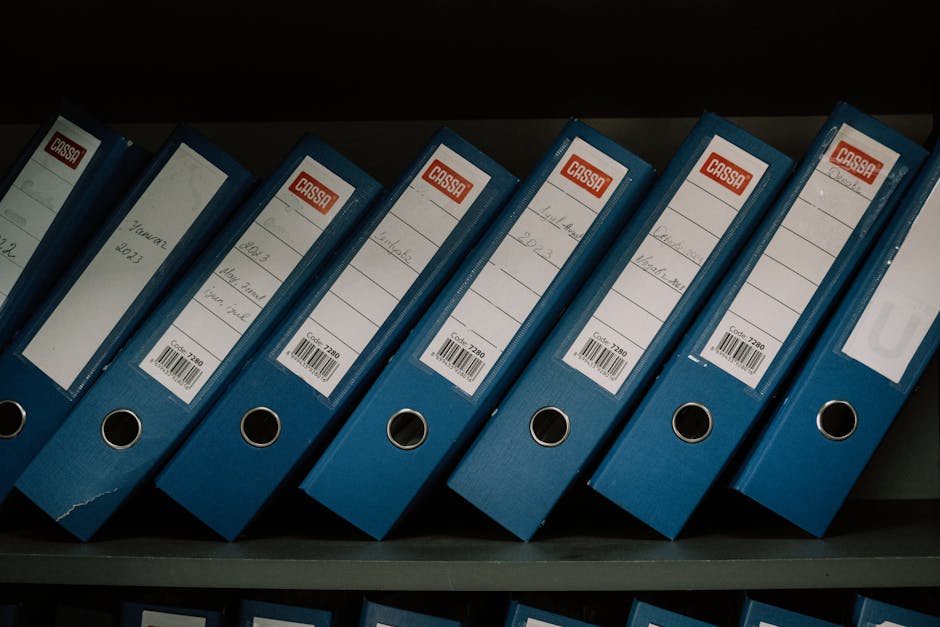
As a lawyer working in engineering, you're likely dealing with complex financial documentation: project budgets, vendor contracts, compliance reports, and expense tracking. The traditional approach—filing cabinets full of paper—creates three major problems: documents get lost, retrieval takes too long, and physical storage becomes unmanageable.
The solution isn't just scanning everything and hoping for the best. You need a systematic approach that makes your digital documents as organized and accessible as your physical files once were. This guide walks you through practical steps using tools you already have access to through PDF Master.
Building Your Digital Filing System
Start with your existing paper documents. Sort them into logical categories that match your workflow: contracts by project, invoices by vendor, compliance documents by regulation. This structure will become the foundation of your digital system.
For each category, create a consistent naming convention. For example: "ProjectName_Contract_Vendor_YYYYMMDD.pdf" or "VendorName_Invoice_Number_YYYYMMDD.pdf". Consistency is key—it makes documents searchable and predictable.
Using Barcodes for Instant Document Retrieval
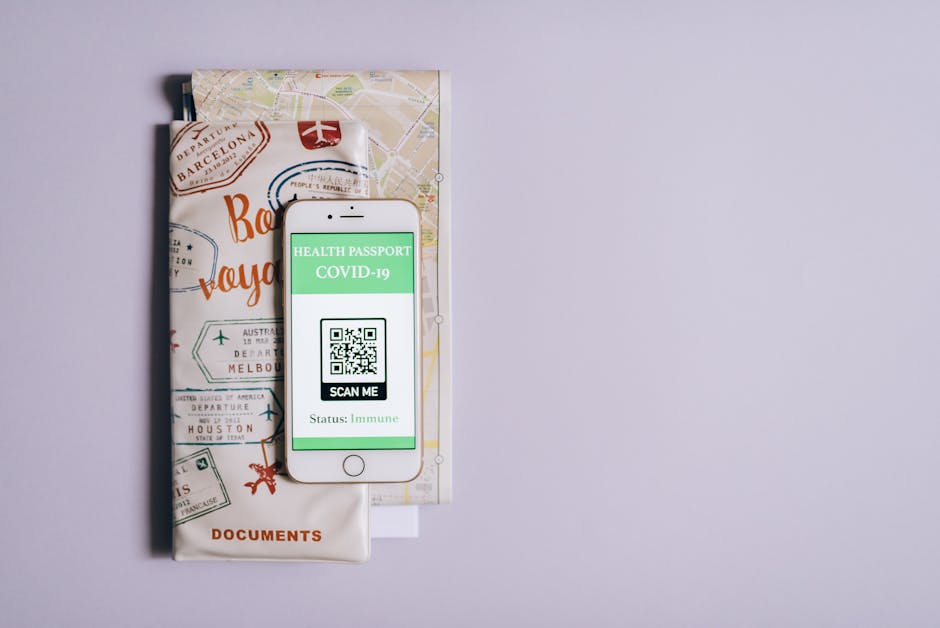
Here's where the Barcode & QR Codes tool becomes your secret weapon. Instead of searching through folders or using complex search terms, you can create scannable codes that link directly to specific documents or document categories.
Here's exactly how to implement this:
- Create category QR codes: Go to the Barcode & QR Codes tool. For each document category (like "Project Alpha Contracts"), enter a unique identifier or folder path. Select QR code format, customize the size, and generate a PDF containing the QR code.
- Print and organize: Print these QR code PDFs and place them in your physical workspace. When you need to access all contracts for Project Alpha, simply scan the corresponding QR code.
- Create document-specific barcodes: For frequently accessed individual documents, generate barcodes with the exact document filename. Place these barcodes in project folders or on your desk for one-scan access.
The tool accepts text, URLs, or numeric data, so you can encode anything from simple document names to full file paths. Multiple barcode formats are supported, and you can customize the size to fit your labeling system.

Converting Physical Documents to Digital
Your existing paper documents need to become searchable PDFs. Start with the documents you access most frequently. Scan them as images, then use the Image to PDF tool to convert them into organized PDF documents.
Here's your workflow:
- Scan multiple pages of a single document as individual image files (JPG or PNG)
- Upload all images to the Image to PDF tool
- Arrange them in the correct order
- Convert them into a single PDF document
- Apply your naming convention and file it in your digital system
For financial spreadsheets that are already digital, use the Excel to PDF tool. Upload your .xls or .xlsx files to create PDF versions that preserve table layout and formatting. This is perfect for budget reports, financial projections, and expense tracking sheets that need to be shared as non-editable documents.
Maintaining Your Digital Archive
A paperless system requires regular maintenance. Schedule monthly reviews to:
- Convert new paper documents using the Image to PDF tool
- Update your barcode system with new document categories
- Ensure all documents follow your naming conventions
If you encounter corrupted PDF files—which can happen during file transfers or system migrations—use the PDF Repair tool. Upload the damaged PDF, and the tool uses Ghostscript to attempt repair. If successful, you can download the fixed file and continue working.
Frequently Asked Questions
Can I create barcodes for multiple documents at once?
No, the Barcode & QR Codes tool generates one barcode or QR code per operation. You'll need to create each code individually. For organizing multiple related documents, consider creating a single QR code that links to a directory or index document containing links to all related files.
What happens if my scanned images are low quality?
The Image to PDF tool preserves the original image quality of your uploaded files. It doesn't enhance or improve image quality. For best results, scan documents at a minimum of 300 DPI to ensure text remains readable when converted to PDF.
Can I edit the content of a PDF after creating it?
The tools mentioned in this guide create and convert PDFs but don't provide PDF editing capabilities. For filling out forms, you can use the PDF Form Fill tool to complete interactive form fields. For other modifications, you would need to edit the original document (Word, Excel, etc.) and convert it again to PDF.
How do I ensure my digital documents are secure?
For sensitive financial documents, use the PDF Password Protection tool to add password protection to your PDF files. This prevents unauthorized access while maintaining the organization system you've created with barcodes and proper filing.