
The HR Consultant's Document Challenge
As an HR consultant, you juggle multiple projects, clients, and deadlines. Between generating reports, creating invoices, reviewing client documents, and handling compliance paperwork, you're constantly managing different file formats. You need to send professional invoices that reflect your expertise, quickly review Word documents from clients, fill out government forms digitally, and ensure all your final documents are polished and ready for delivery.
The problem? Switching between different software applications, dealing with compatibility issues, and wasting time on manual formatting. You need tools that work directly in your browser, require no installations, and handle the specific document tasks you face daily.
That's where PDF Master comes in. With 33 browser-based tools designed for practical document tasks, you can streamline your entire workflow from report generation to final document delivery. Let's walk through how these tools solve real problems HR consultants face every day.

Professional Invoicing Made Simple
After completing a project—whether it's a compensation analysis, policy review, or training program—you need to invoice your client professionally. Creating invoices manually in Word or Excel takes time and often looks unprofessional. Accounting software can be overkill for consulting work.
PDF Master's Invoice Generator creates polished, professional invoices in minutes. Here's exactly how it works:
- Choose your template: Select from four professional designs—Modern, Classic, Minimal, or Corporate. Each template gives your invoice a distinct look that matches your consulting brand.
- Enter business and client details: Add your company information, logo (if desired), and your client's details. This creates a clean header that establishes professionalism from the first glance.
- Add line items: List your services with descriptions, quantities, and prices. You can add unlimited line items, perfect for detailed project breakdowns or retainer agreements.
- Apply tax and discounts: The tool automatically calculates taxes and discounts, so you don't need to do manual math. This ensures accuracy in your billing.
- Generate and download: Click generate, and you get a downloadable PDF invoice ready to email to your client.
The output is a professional PDF invoice that looks like it came from a dedicated accounting department, not a consultant working from a home office. This tool is perfect for project-based billing, hourly consulting work, or retainer agreements.

Quick Document Review Without Software
Clients often send documents in Word format—policy drafts, employee handbooks, or reports for your review. You might be working from a client site, a coffee shop, or a computer without Microsoft Office installed. Downloading and installing software just to view a document isn't practical.
Two tools solve this problem instantly:
Word Viewer: Upload any .doc or .docx file and view it directly in your browser. No Microsoft Office needed. This is perfect for quickly reading a document on any device—even a public computer or tablet. You can review attachments without downloading software, making last-minute client reviews possible from anywhere.
PDF Viewer: When clients send PDFs—compliance documents, signed agreements, or reference materials—you can view them immediately without downloading a PDF reader. The browser-based viewer lets you zoom, scroll, and navigate pages just like desktop software. This is especially useful when you're on a shared computer or mobile device and need to check a document quickly.
Both tools work on any device with a browser, eliminating the "I can't open this file" problem that wastes valuable consulting time.
Streamlining Compliance and Forms
HR consulting involves plenty of forms—tax documents, compliance paperwork, government filings, and client agreements. Printing, filling by hand, scanning, and emailing creates unnecessary steps and potential errors.
The PDF Form Fill tool lets you complete forms digitally and professionally:
- Upload any PDF with interactive form fields (like tax forms, applications, or compliance documents)
- The tool automatically detects all form fields—text boxes, checkboxes, and dropdown menus
- Fill in the fields directly in your browser
- Download the completed form as a new PDF ready for submission
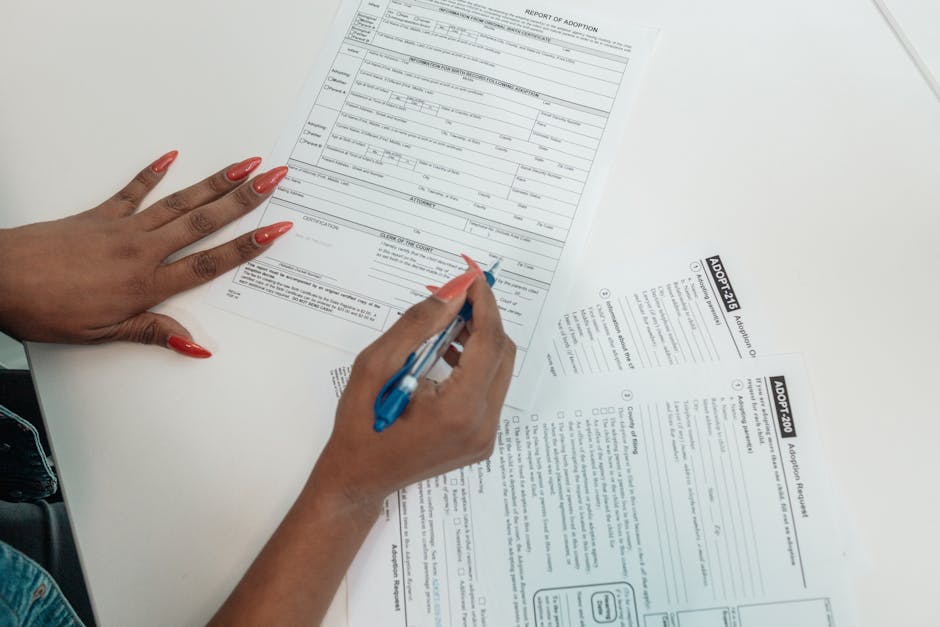
This means you can complete I-9 verification forms, tax documents, compliance checklists, or client intake forms without ever printing a page. The filled PDF maintains professional formatting and is ready for digital submission or email attachment.
Building Your Complete PDF Workflow
Let's put it all together into a practical HR consulting workflow:
Step 1: Document Creation and Conversion
Start with your working documents. If you have reports in Word format, use the Word to PDF converter to create final client versions. For data-heavy reports, Excel to PDF converts spreadsheets to clean PDFs.
Step 2: Review and Polish
Use the PDF Viewer to check your final documents. Need to combine multiple reports? PDF Merge combines separate PDFs into a single deliverable. Add page numbers with Page Numbering for professional touch.
Step 3: Forms and Compliance
When handling compliance work, use PDF Form Fill to complete government or client forms digitally. No printing, no scanning, no errors from handwritten forms.
Step 4: Billing and Delivery
Create professional invoices with the Invoice Generator. Choose a template that matches your brand, add line items for your services, apply any taxes or discounts, and generate a PDF invoice ready for email.
Step 5: File Management
Before sending large files to clients, use PDF Compressor to reduce file size while maintaining quality. For sensitive documents, add password protection with PDF Password Protection.
Every tool works directly in your browser—no downloads, no installations, no software subscriptions. You can work from any computer, whether you're at a client site, home office, or traveling.
Frequently Asked Questions
Can I customize the invoice templates with my company logo?
The Invoice Generator includes four professional templates (Modern, Classic, Minimal, Corporate) with layouts designed for business use. You enter your business details including company name, address, and contact information which displays prominently on the invoice. While you can't upload custom logos directly, the templates provide clean, professional designs that work well for consulting businesses.
What if I need to fill a PDF form that doesn't have interactive fields?
The PDF Form Fill tool only works with PDFs that have interactive form fields built into them. If you have a PDF that's just an image of a form (like a scanned document), the tool won't detect fields to fill. For those types of documents, you would need different software that handles image-based forms, which isn't currently available in PDF Master's toolset.
Can I save my invoice template to reuse for recurring clients?
The Invoice Generator creates invoices from scratch each time—it doesn't save templates or client information between sessions. For recurring clients, you'll need to re-enter their information each time you create an invoice. However, the process is quick: choose your template, enter business and client details (which you can copy from previous invoices), add line items, and generate. Many consultants keep a text file with common client details to copy and paste.
Do these tools work on mobile devices?
Yes, all PDF Master tools work on any device with a web browser, including smartphones and tablets. The Word Viewer and PDF Viewer are particularly useful on mobile when you need to quickly check a document without dedicated software. The Invoice Generator also works on mobile, though entering detailed line items might be easier on a computer with a full keyboard.



