
The Problem: Sharing Sensitive Plans Without Losing Control
As an architecture project manager, you've spent weeks developing detailed plans, elevations, and specifications. Now you need to share these documents with your client for review, but you're worried. What if they accidentally modify the scale? What if they can't reference specific pages during your meeting? What if the file gets forwarded to unauthorized parties?
You need a way to share professional, reference-ready documents while maintaining control over your intellectual property. The solution isn't complicated software or expensive subscriptions—it's a simple three-step process using free browser tools.
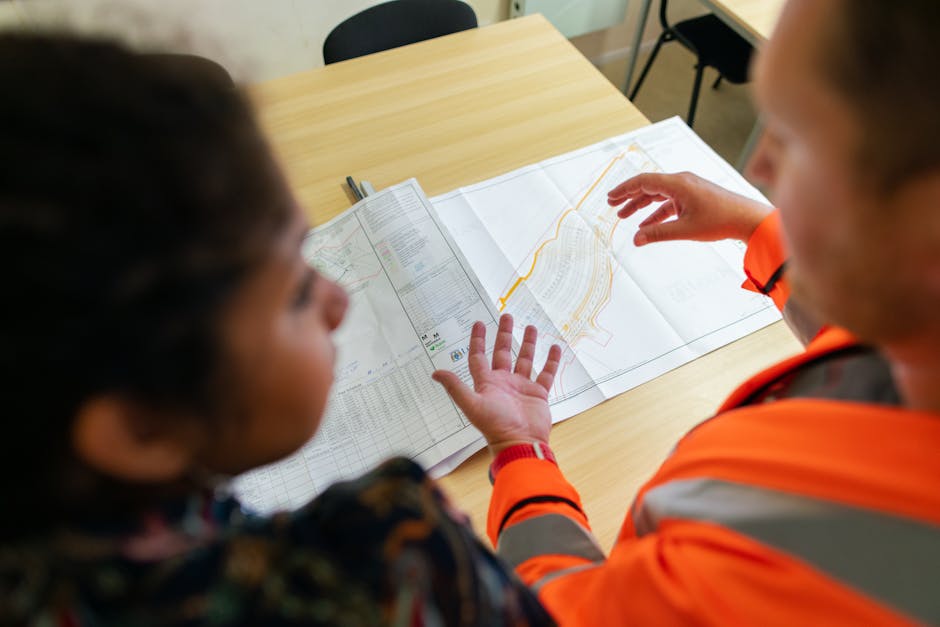
Step 1: Add Professional Page Numbers for Clear Reference
Before sending any architectural document, add page numbers. This might seem basic, but it's crucial for professional communication. When your client says "I have a question about page 7," you both need to be looking at the same page 7.
Here's exactly how to do it with our Page Numbering tool:
- Upload your architectural PDF (site plans, floor plans, elevations, sections)
- Choose the position: Bottom-right corner works well for most architectural documents
- Set the font size: 10-12pt is usually readable without being intrusive
- Set the starting number: Typically 1, but you might start at 101 for appendix sections
- Click "Add Page Numbers" and download your numbered PDF
The tool applies numbers to every page automatically. Now your 50-page construction document set has clear, consistent pagination. This is especially helpful when you're discussing specific details during client meetings or coordinating with consultants.
Step 2: Flatten Your PDF to Lock in All Elements
Architectural PDFs often contain layers, annotations, and sometimes form fields. The PDF Flatten tool merges everything into a single, static layer. This serves two important purposes:
First, it prevents accidental modifications. Your client can't accidentally move a dimension line or delete a note. Second, it ensures what you see is what they see—no rendering issues with complex layers or transparency.
To flatten your document:
- Upload your numbered PDF from Step 1
- The tool automatically merges all layers, form fields, and annotations
- Download the flattened version
Your architectural drawings are now in a non-editable, print-ready state. The scale bars, north arrows, title blocks, and all annotations are locked in place. This is particularly important for construction documents where precision matters.
Step 3: Add Password Protection for Final Security
For truly confidential documents—like schematic designs before public release or proprietary detailing—add password protection. Use the PDF Password Protection tool to control who can open the file.
The process is straightforward:
- Upload your flattened PDF
- Set a strong password (share this separately with your client)
- Download the protected PDF
Now only people with the password can open the architectural plans. This adds an extra layer of security when sharing via email or file transfer services. Remember to send the password through a different channel (like a phone call or separate email) for best security practices.
Complete Workflow: From Concept to Client Delivery
Let's walk through a real scenario: You're sending preliminary design documents for a residential project.
Start with your source files. If you have drawings in other formats, convert them first. Use Word to PDF for specifications and Image to PDF for any scanned sketches or photos.
Combine everything into a single document using to reduce file size for easier email delivery, especially important for high-resolution renderings.

Frequently Asked Questions
Can I add page numbers to only specific pages, like excluding the cover?
The Page Numbering tool applies numbers to every page automatically. If you need to exclude certain pages, you could split your PDF first using . For most architectural documents, having numbers on all pages (including the cover) provides the clearest reference system.
Does flattening reduce the quality of my architectural drawings?
No, flattening doesn't reduce image quality. It simply merges separate layers into one static layer. Your line weights, hatches, and rendering quality remain exactly the same. The tool creates a non-editable version while preserving all visual information.
What if my client needs to add comments or markups?
Send two versions: a flattened, numbered version for clear reference during discussions, and an unflattened version they can annotate if needed. You can create both from your original file. For formal review processes, consider using the flattened version as the official record once all markups are incorporated.
Can I remove the password later if the project becomes public?
Yes, you can create a new unprotected version from your original file at any time. Simply run the original (before password protection) through the numbering and flattening steps again without adding a password. Keep your original files organized so you can generate new versions as project phases progress from confidential design to public permitting documents.



